

A brand new domain has no sending history, so inbox providers like Gmail and Outlook don’t trust it yet. Send hundreds of cold emails from it on day one and they’ll land in spam. That’s why every domain needs to be warmed up before it sends cold email.
This guide explains how email warmup works, how Deliveryman AI warms up your domain automatically, how to track progress, and how to know when your domain is ready to send. Prefer to watch? The full walkthrough is below.
Why new domains land in spam
Mailbox providers decide where your email goes based on your sender reputation: the history of how recipients have treated mail from your domain. A new domain has no history at all. When it suddenly sends a large volume of cold email, it looks exactly like a spammer who just registered a domain, and filters treat it that way.
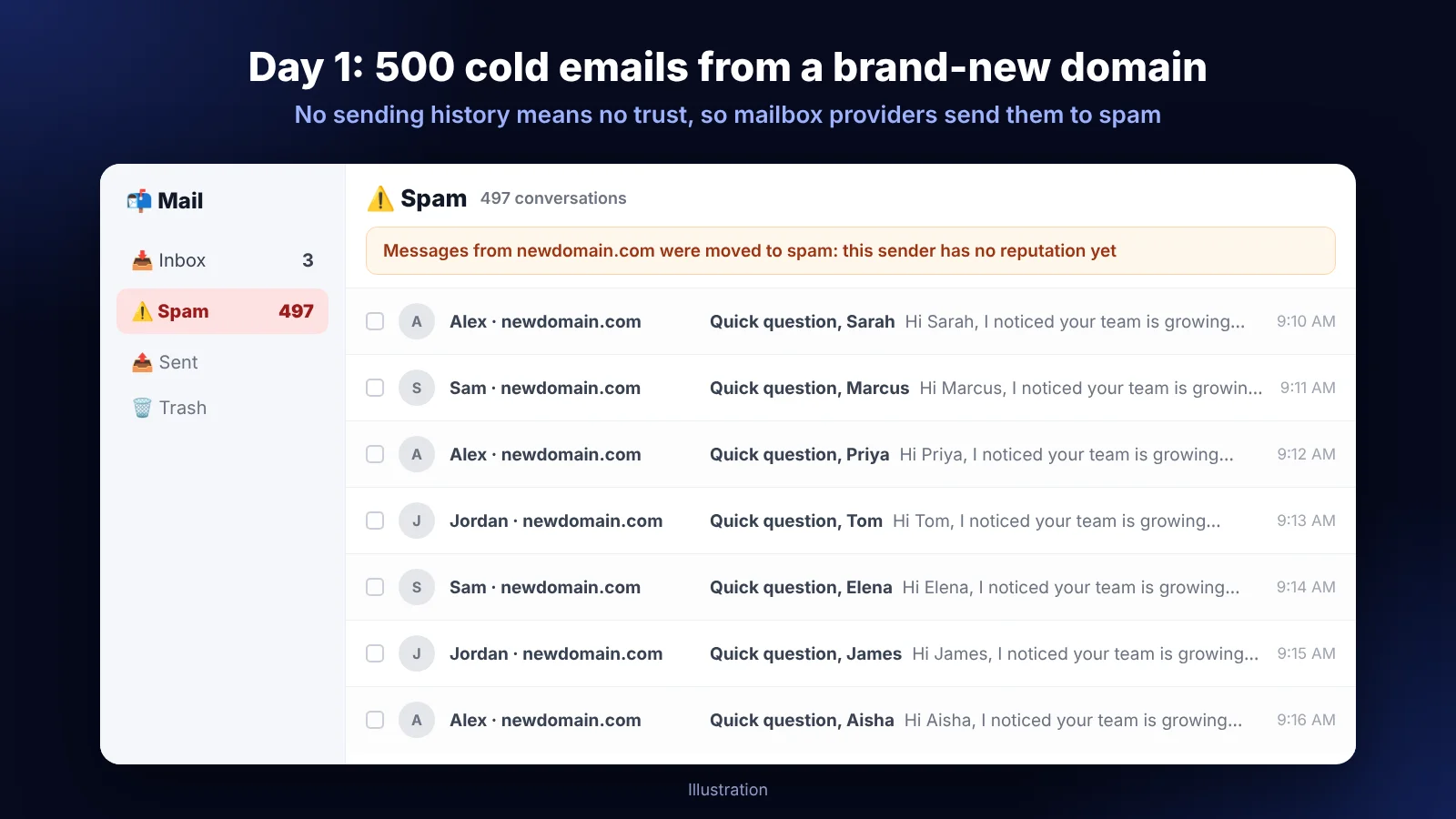
Google’s email sender guidelines say it directly: start with a low sending volume and slowly increase it over time, and avoid sudden volume spikes if you don’t have a history of sending large volumes.
How email warmup works
Here’s the general idea behind warmup:
- A mailbox starts by sending just a few emails a day.
- Those emails get opened, replied to, and moved out of spam if they ever land there.
- Gmail and Outlook see real engagement, and they start to trust the domain.
- Repeat that every day, slowly increasing the volume, and the reputation grows.
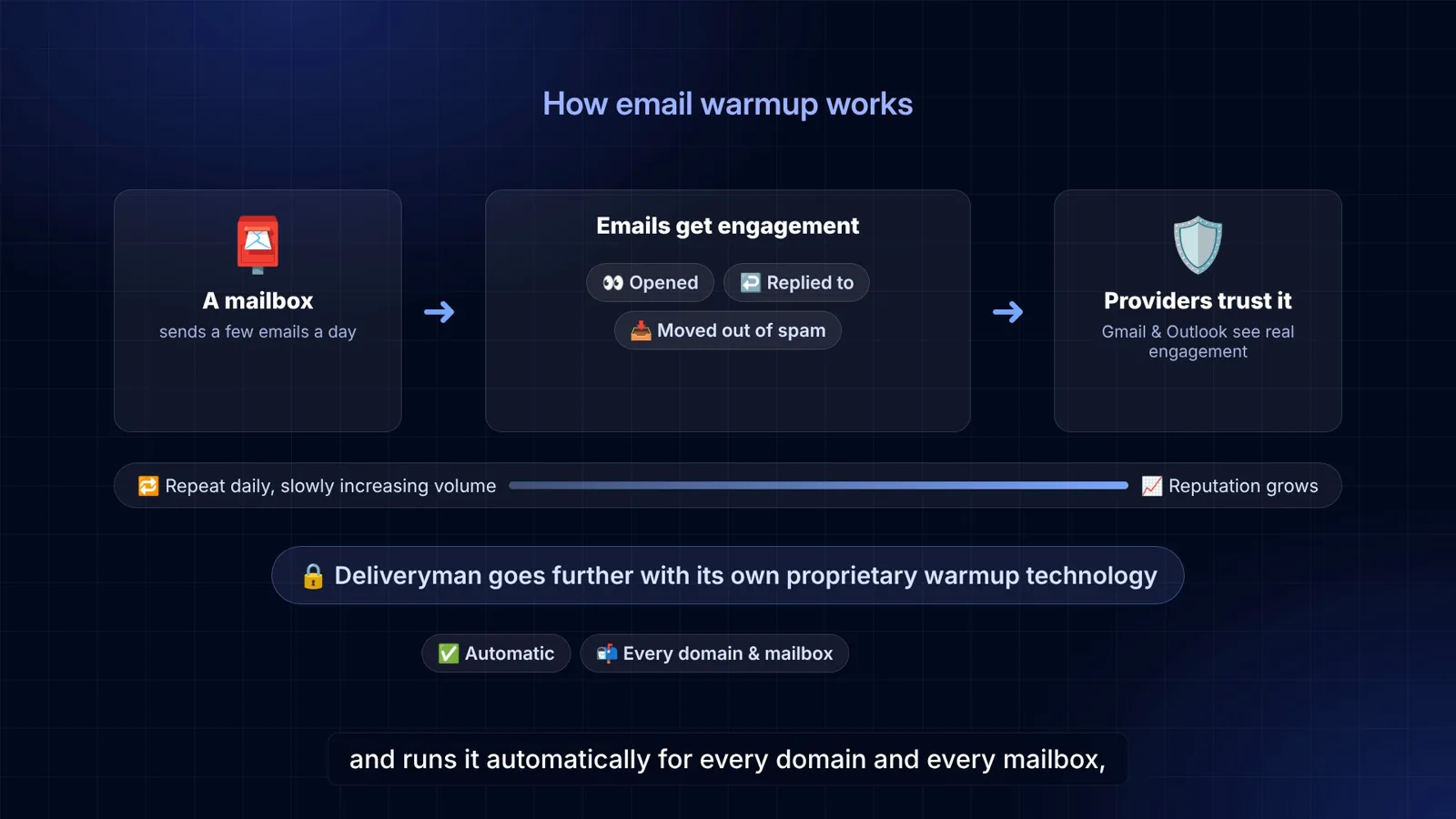
That’s the basic concept. Deliveryman takes it much further with its own proprietary warmup technology, and runs it automatically for every domain and every mailbox, at no extra cost.
Email warmup starts automatically in Deliveryman AI
You don’t need to configure anything. As soon as you connect a domain and your mailboxes are set up, Deliveryman starts building your domain reputation and warming up your email accounts.
Unlike standalone warmup tools that only warm up inboxes you already have, Deliveryman creates the subdomains and mailboxes for you, sets up SPF, DKIM and DMARC, and warms everything up as part of the same setup. Warmup is unlimited on every plan.
How to track your domain warmup
The Email Sending Domains page
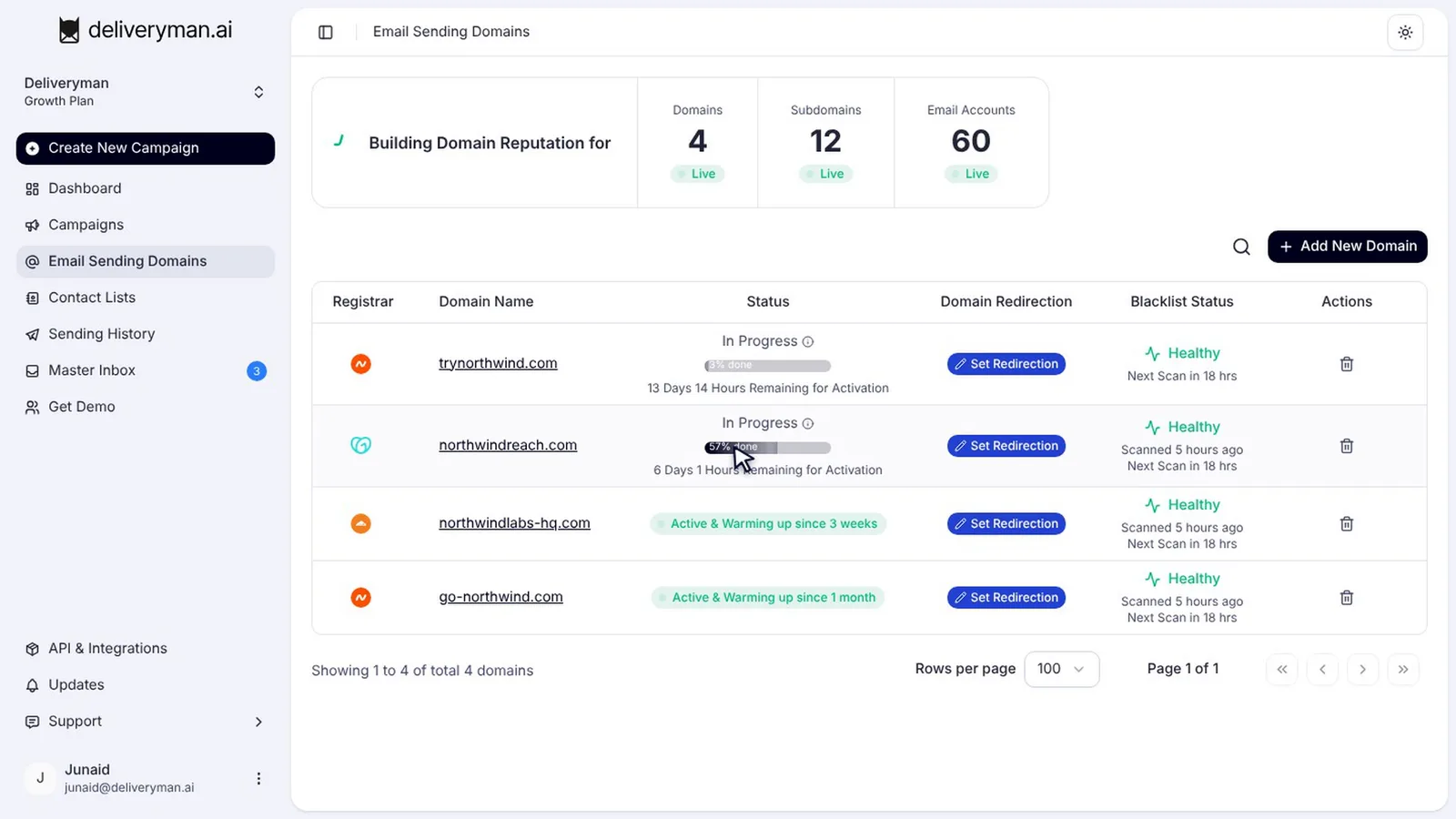
Open Email Sending Domains. At the top, you can see how many domains, subdomains and email accounts are building reputation right now.
In Progress: reputation building
A new domain shows In Progress, with a progress bar and the time left until it’s activated. Reputation building takes about 14 days. In the example below, one domain is 57% done with six days to go.
Active & Warming up
When a domain finishes, its status changes to Active, and you can start sending campaigns from it. Warmup doesn’t stop there. Active domains keep warming in the background, so they show Active & Warming up, along with how long they’ve been warming.
That ongoing warmup matters. Reputation isn’t a one-time achievement; it’s built and maintained by consistent, healthy sending over time.
The domain details page
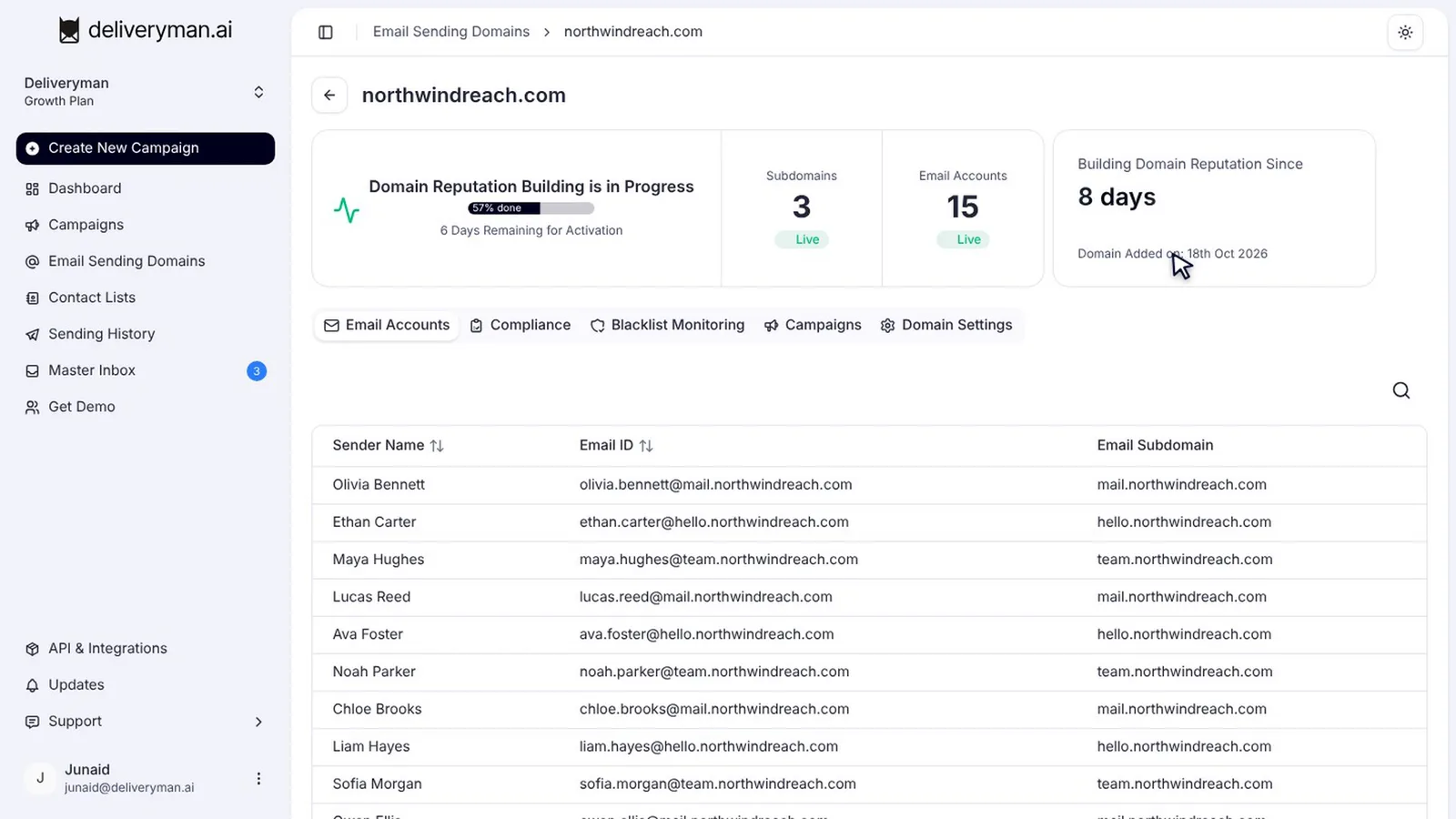
Click a domain to see more. The top card shows reputation-building progress and the days left until activation. Next to it, you can see how long the domain has been building its reputation and when it was added. Below are all the email accounts on this domain, and they warm up with it.
Warming domains in your campaigns
When you create a campaign, domains that are still warming are marked Warming Up in the domain picker, so you can tell them apart from active ones.
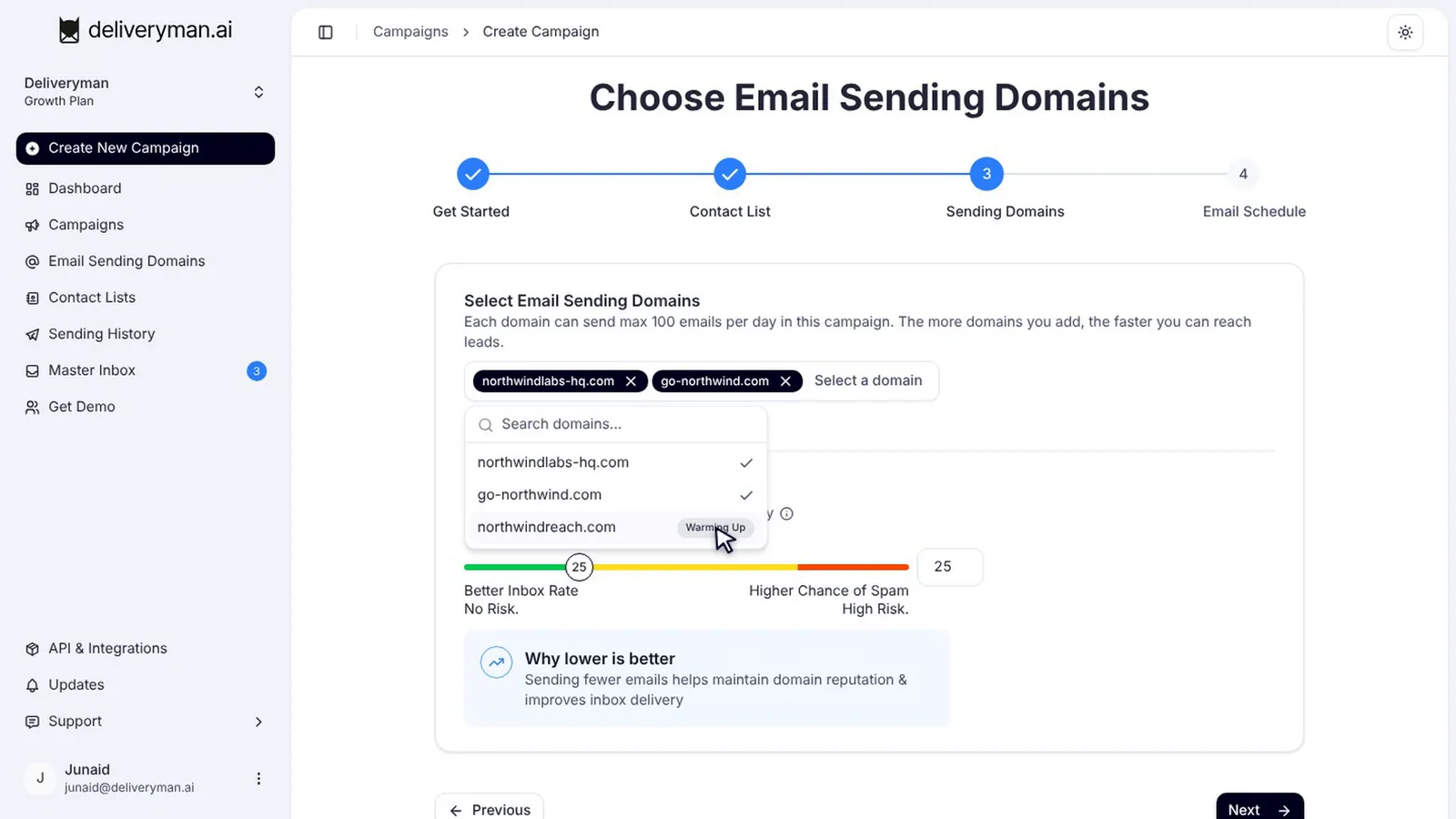
For the best results, send from active domains, and keep your daily limit low. Lower volume means better inbox placement. Our guide on how to set up a cold email campaign covers daily limits in more detail.
Email warmup best practices
- Use a separate domain for cold email, never your main business domain.
- Let warmup finish before you launch campaigns from a new domain.
- Scale with domains, not volume per domain. More domains at a modest daily limit beat one domain pushed hard. Our sending strategy guide explains how daily volume is shared.
- Verify your lists. Bounces undo warmup fast. See how to verify your email list.
- Watch your bounce rate and replies in campaign analytics, and check your domain’s reputation with Gmail in Google Postmaster Tools if you send enough volume to it.
- Keep an eye on blacklists. Deliveryman monitors your domains, and our blacklist removal guides explain what to do if one gets listed.
Frequently Asked Questions
How long does it take to warm up a domain?
In Deliveryman, reputation building takes about 14 days for a new domain. The Email Sending Domains page shows the exact time remaining for each domain.
Do I need to set up email warmup myself?
No. Warmup starts automatically once your domain and mailboxes are set up, with nothing to configure.
Does warmup stop once my domain is active?
No. Active domains keep warming in the background, which is why they show Active & Warming up.
Is email warmup included in my plan?
Yes. Email warmup and domain reputation building are unlimited on every Deliveryman plan. See pricing.
Can I send campaigns from a domain that’s still warming?
Domains that are still warming are marked Warming Up in the campaign domain picker. For the best inbox placement, send from active domains.
Next steps
Connect your first domain and let warmup run while you prepare the rest: follow our guide on how to connect your domain and create cold email mailboxes, then see pricing to get started.